The builder
/emenus create <name> [rows]     make a new one
/emenus edit <name>              open an existing one
/emenus                          the builder home screen
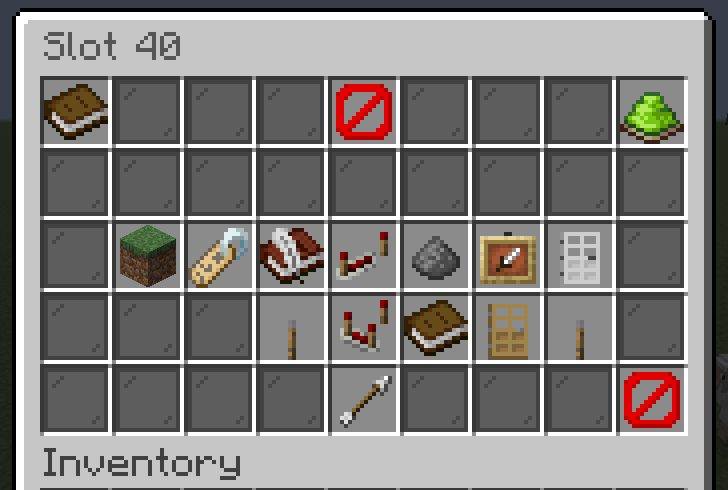
The screen above is the slot editor, which is what opens when you click a slot on the canvas. The item at the top is a live preview of the icon as players will see it, and everything around it changes one thing about that icon.
The canvas
The grid you land on is the menu, at its real size, drawn exactly as players will see it. There is no separate preview to drift out of step with the thing you are editing.
| Left-click a slot | Edit the item there, or add one if it is empty |
| Right-click a slot | Clear the slot |
| Q | Open the tools |
Holding an item when you click an empty slot uses that item straight away, including its name. Laying out a menu is: hold, click, hold, click.
Why is there no toolbar on the canvas?
Because a menu can be 54 slots, and a toolbar would mean you could never build a full one. The drop key costs nothing and is always available, on every screen.
The tools
Q from anywhere.
| Title | What players read at the top |
| Size | 1 to 6 rows. Items that no longer fit are removed, and you are told how many |
| Open command | The command that opens this menu |
| Open permission | Who may open it at all |
| Live refresh | Redraw every few seconds so placeholders stay current |
| Borders and background | The colour palette |
| Start from a template | Replace this layout with a ready-made one |
| Test it | Save, reload, and open it the way a player would |
| Save | Write the file, keep editing |
| Save and exit | Write it and close |
| Discard changes | Put the file back as it was when you opened the editor |
Editing one slot
| Item | Any material, or a reference like hdb:1234 or head:%player_name%. Right-click uses what you are holding |
| Display name | Colour codes and placeholders both work |
| Description | The grey lines underneath, one at a time |
| Stack size | The number in the corner |
| Glow | The enchanted shimmer, without a real enchantment |
| Custom model data | For servers running a resource pack |
| Who can see it | A permission node. Without it, the player sees an empty slot |
| What clicking does | The action list |
| Make this open a menu | Turn the icon into a section, below |
| Decoration | Scenery. Players cannot click it, and it is locked here |
| Priority | Which item wins when two share a slot |
| Duplicate | Copy this item into the next empty slot |
There is a Save button on this screen too, and a How this works guide in the top-left corner.
Animate
Cycles the icon through a list of items so it moves on screen.
- Click adds a frame. If you are holding an item it uses that one, so the fastest way to build a cycle is to hold each item in turn and click.
- Right-click removes the last frame. Take them all off and the icon stops animating.
- Shift-click sets the speed in ticks. Twenty ticks is one second; the default is four.
Two frames is the minimum for anything to move. The button shows how many you have and what they are.
Only the picture changes. The name, description, permission and what clicking does stay the same on every frame, so an animated icon is still one icon and cannot drift out of step with itself. The full format, including frames that change the name or lore as well as the material, is on Items and icons.
Sections
A menu that opens other menus is the most common thing anyone builds, so it is one button rather than a syntax to learn.
Open a slot, choose Make this open a menu, then either pick a menu you already have or choose Create a new section.
Creating a section does all of this at once:
- makes a new menu named
<parent>_<yourname> - copies this menu's background, border and corners, so the section matches rather than looking like a different plugin
- puts a Back button in it pointing home
- points the icon at it and names the icon for you
Open nothing on the same screen clears an icon's click actions again.
A menu cannot link to itself, because that is a loop with no way out.
Borders and backgrounds
Q then Borders and background.
| Click | Border |
| Shift-click | Border, enchanted |
| Right-click | Background |
| Shift-right-click | Background, enchanted |
Enchanted is the shimmer you see on enchanted items. It is a look, not a real enchantment: the glass has no properties and no tooltip.
A combination that always works: right-click Black for the background, then shift-click your accent colour for the border.
Decoration
Some icons are there to be looked at. Mark one as Decoration in the slot editor and two things change:
- players cannot click it. The click is dropped before any requirement or action is looked at, so a border can never do something by accident
- it is locked in the builder. Left-click and right-click on the canvas do nothing to it
That second one exists because a border spans twenty-odd slots. A stray left click used to open its editor, and a stray right click deleted one slot out of the middle of it, leaving a gap you would find much later.
Shift-click a locked icon to edit it anyway, and shift-right-click to clear that slot.
Anything the paint tool lays down is marked as decoration for you, as is the scenery in every bundled menu. You only need this for glass you place by hand.
A border is written as one item claiming every edge slot, not twenty-odd copies. Changing the colour later is one edit, and the saved file stays readable.
Background fill only ever touches slots that are still empty, so it cannot cover a button you have already placed.
Saving
Three things write the file:
- the Save button, on the slot editor and in the tools
- Save and exit
- closing the editor, including with Escape
That last one is deliberate. An editor that quietly throws away twenty minutes of work because somebody hit the wrong key is not one you would trust twice. Discard changes is the deliberate way to undo, and it restores the file exactly as it was when the session opened, including anything you saved during it.
Two people, one menu
A menu can only be edited by one person at a time. If somebody else has it open you are told who, rather than both of you saving over each other.
Testing it
Test it in the tools saves, reloads, closes the editor and opens the menu as
a player would see it, permissions and all. Get back with
/emenus edit <name>.